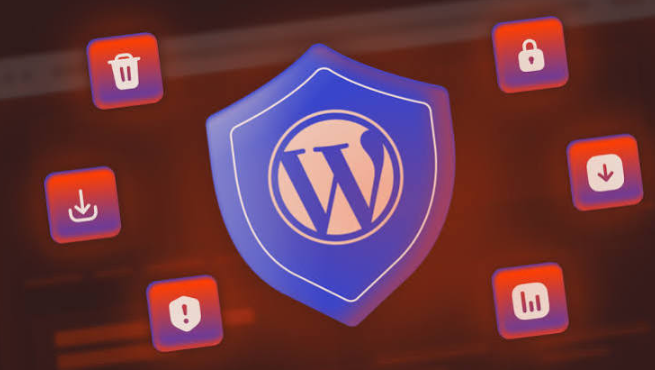

WP Login Lockdown is a WordPress login security control that limits repeated failed login attempts and blocks suspicious access before attackers can keep guessing passwords. That matters because WordPress powers more than 43% of all websites, which makes its login page a constant target for bots and credential stuffing tools.
TLDR: WP Login Lockdown protects your WordPress admin area by locking out users or IP addresses after too many failed login attempts. For example, a small WooCommerce store that gets 80 failed login attempts in one hour can set a rule to block an IP after 5 bad tries for 30 minutes. It does not replace strong passwords or two-factor authentication, but it cuts down automated attacks fast. Use it with careful settings so real users do not get blocked too often.
What Is WP Login Lockdown?
WP Login Lockdown is a plugin approach used to protect the wp-login.php page and WordPress admin login form. Its main job is simple: watch failed login attempts, count them, and lock access when the pattern looks risky.
Most brute force attacks are not clever. They are noisy. A bot tries admin, administrator, info, or a known email address with hundreds of password combinations. Without limits, the bot can keep trying until your server slows down or a weak password breaks.
Login lockdown changes that. After a set number of failed attempts, it can block the IP address, user account, or login session for a defined time.
How Login Lockdown Works
The process is usually direct. A visitor enters a username and password. If the login fails, the plugin records details such as:
- IP address
- Username used
- Time of the attempt
- Number of failed attempts
- Lockout status
When the failures reach your limit, the system blocks more attempts for a certain period. A common setting is 5 failed attempts within 10 minutes, followed by a 30-minute lockout. Higher-risk sites may use stricter rules.
The catch is that aggressive settings can annoy real users. If a staff member mistypes a password five times during a busy morning, they may be locked out when they need to process orders. Security should be firm, not clumsy.
See also: Key Skills Needed to Build a Successful Career as a Life Coach
Why WordPress Login Security Matters
Your login page is one of the most exposed parts of your website. Anyone can reach it unless you add restrictions. Attackers know this. They use scripts to test stolen passwords, common passwords, and leaked username lists.
A successful login attack can lead to serious damage:
- Malware added to your site
- Spam pages created under your domain
- Customer data theft
- Plugin or theme files changed
- SEO rankings damaged by hidden links
- Admin accounts created without permission
One weak password can undo months of work. Login lockdown reduces the number of guesses an attacker can make. That simple limit can stop many automated attacks before they become a real breach.
Main Features to Look For
Not every login lockdown plugin works the same way. Some are basic. Others include reporting, allowlists, and firewall rules. When choosing a tool, look for the following features.
1. Failed Attempt Limits
This is the core feature. You should be able to set how many failed attempts are allowed before a lockout starts. For most sites, 3 to 5 failed attempts is a reasonable starting point.
2. Custom Lockout Duration
You should control how long a block lasts. Short lockouts, such as 15 minutes, are less frustrating for real users. Longer lockouts, such as 12 or 24 hours, work well against repeat attackers.
3. IP Blocking and Logging
A good lockdown tool should show which IPs are attacking your site. Logs help you spot patterns. If one address makes 300 failed attempts in a day, you have a clear signal.
4. Email Alerts
Alerts can warn you when attacks increase. Do not turn on every possible alert, though. It drives me crazy when security plugins send 40 emails overnight for routine bot noise. Choose serious alerts only.
5. Allowlist Support
An allowlist lets trusted IPs bypass some restrictions. This is useful for agencies, internal teams, or site owners with fixed office IP addresses.
6. Compatibility With Two-Factor Authentication
Login lockdown is stronger when paired with 2FA. Even if a password is stolen, the attacker still needs the second verification step.
Recommended Settings for Most Sites
There is no perfect setup for every website. A personal blog, membership site, and online store have different risks. Still, these settings work well for many WordPress sites:
- Failed attempts allowed: 5
- Time window: 10 minutes
- Lockout period: 30 to 60 minutes
- Repeat offender lockout: 24 hours
- Email alerts: only after repeated lockouts
- Admin username: never use “admin”
If you run a site with many customers, keep the lockout period moderate. Expect to waste time on support tickets if normal users keep getting blocked for simple mistakes.
WP Login Lockdown vs. Other Security Measures
WP Login Lockdown is useful, but it is not a full security plan. It protects one major entry point. You still need other controls.
Use it with:
- Strong passwords for every admin and editor
- Two-factor authentication
- Regular plugin and theme updates
- Limited admin accounts
- Backups stored offsite
- A web application firewall
The OWASP guidance on authentication also supports limiting repeated login attempts as part of safer authentication design.
Common Mistakes to Avoid
Many site owners install a login security plugin and stop there. That is risky. A plugin can help, but poor setup weakens it.
- Using “admin” as a username: This gives attackers half of the login pair.
- Setting lockouts too low: Blocking after one failed attempt can punish real users.
- Ignoring logs: Logs show attack patterns before damage happens.
- No 2FA: Lockdown reduces guessing, but 2FA protects stolen passwords.
- Forgetting backups: If something goes wrong, backups are your safety net.
Who Should Use WP Login Lockdown?
Almost every WordPress site should use login attempt limits. This includes blogs, business sites, schools, nonprofits, shops, and membership platforms. The need is higher if your site has multiple users or handles payments.
A small brochure site may only need basic limits and 2FA. A WooCommerce store should use stricter monitoring, alerts, and a firewall. A membership site should balance security with user experience, since customers may forget passwords often.
How to Add Login Lockdown to WordPress
The setup is usually quick:
- Back up your website.
- Install a trusted login security or lockdown plugin.
- Set failed attempt limits.
- Choose lockout duration.
- Add trusted IPs if needed.
- Test failed logins from a non-admin account.
- Review logs after 24 to 48 hours.
Do not skip testing. You need to know what real users will see when they enter the wrong password. A clear error message is better than a vague block that causes panic.
Final Verdict
WP Login Lockdown is a practical, low-cost way to reduce brute force attacks on WordPress. It limits repeated failures, blocks suspicious IPs, and gives you better visibility into login abuse. It will not make a bad password safe. It will not fix outdated plugins. But it closes a common gap that attackers abuse every day.
For serious WordPress login security, use lockdown rules, strong passwords, 2FA, updates, and backups together. That mix gives your site a much stronger defense without making daily admin work painful.


 By

 By